Co-Harmony
Separated yet Synced
Premium Co-Parenting Portal
Co-Parenting, Redefined in Perfect Harmony
Co-Harmony is a court-certified, AI-assisted parenting hub designed for separated families. Sync custody schedules, split shared expenses, link critical child directories, and communicate through a conflict-mitigating ledger.
AI Harmony Mediator
Objective dispute compromises posted directly to the unalterable chat log.
Tone Guard & Assistant
Monitors messages for aggressive tones, proposing child-centric wording.
Court-Ready Logs
Tamper-proof unalterable export archives ready for legal representation.
AI Vitals Scanner
Automatically extracts details from immunisation cards and medical logs.
Access Portal
Sign up or log in to access your shared family space.
Designed for Conflict Resolution & Cooperation
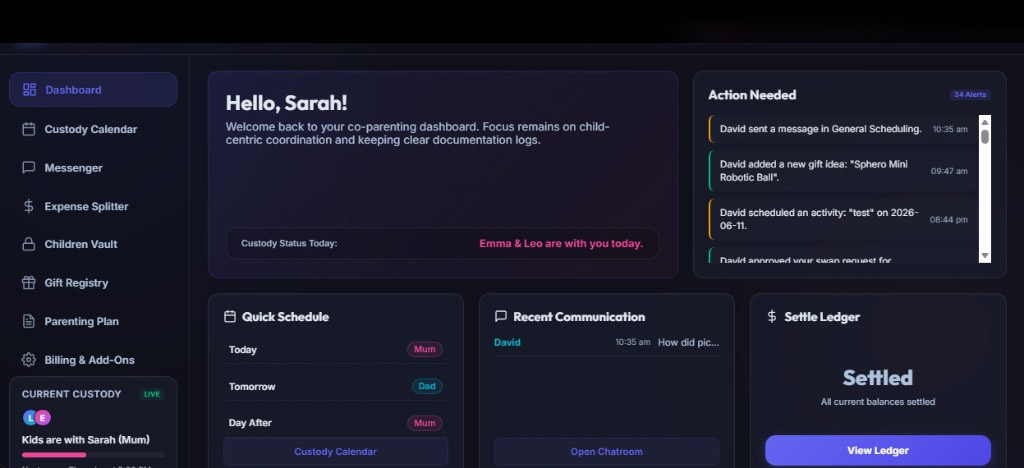
Experience a structured co-parenting hub that aligns calendars, logs medical histories, and ensures clean communication.
Portal Modules
Connected Co-Parenting Features
Explore our premium suite of conflict-resolution and scheduling components.
AI Harmony Mediator
Analyzes message threads in real time to suggest objective, fact-based compromises. Post certified mediation cards directly to the unalterable chat ledger.
Custody Swap Ledger
Request swaps and check schedules with AI Advice. Recommends conflict-free alternative makeup dates to ensure stable parenting structures.
Connected Care Vault
Unify child profiles, school contacts, medical vitals, and cabinet files. Cross-link document records directly to activities and expenses.
Tone Guard & Assistant
Monitors messages for aggressive or demanding tones. The inbuilt writing assistant rephrases prompts into child-centric communications.
Shared Expense Splitter
Log school, medical, and activity splits with custom ratios. Link invoice receipts directly from the child cabinet, and settle balances in one tap.
AI Vitals Scanner
Automatically performs OCR and scans documents like medical reports, immunisation schedules, and school cards, suggesting ledger updates with a parent-approval workflow.
Collaborative Gift Registry
Organize Christmas or birthday wishlists with co-parents. Features surprise mode reservations, duplicate prevention warnings, and receipt validation.
Geofenced Exchange Logs
Privately record arrival/departure custody transitions. Uses Haversine calculations to verify check-ins inside pre-registered zones on a live SVG street map.
Harmony Sentiment Analytics
Monitor the healthy communication status of your relationship. Features dynamic sentiment timelines, communication profile bar charts, and de-escalation tips.
Private AI Harmony Coach
Access a secure, fully segregated 1-on-1 advisor inside Messenger to draft messages, get boundary-setting advice, and manage co-parenting stress privately.
Help Center
Operational How-To Guides & FAQ
Read step-by-step instructions on running the portal and resolving disputes.
Step-by-Step How-To Guides
01
Resolve Chat Friction with the AI Harmony Mediator
When discussions in chat channels stall, click the Harmony Mediator button in the chat header. Review the AI's analysis and compromise, then click Post Compromise to Chat to insert a certified, legally-archived mediation card into the chat log.
02
Propose Swaps & Select AI Advice Alternative
To request a schedule change, click + Request Custody Swap in the calendar tab, enter the dates, and submit. If you receive a swap request, click the AI Advice button on the card, view the schedule analysis, select a recommended date option, and click Propose AI Alternative.
03
Log Shared Expenses & Link Verification Files
In the Expense Splitter tab, click + Log New Expense. Input the details and split ratio, select a child from the cabinet, and link pediatric vitals/contacts or document receipts. Once logged, click Settle Balances to balance the family ledger automatically.
04
Upload Shared Milestone Photos to the Children Vault
To preserve and share key milestones or activities, select the **Children Vault** tab and scroll to the **Shared Children Photo Gallery** at the bottom. Click **+ Upload Photo**, write a title and note, select a pre-designed visual template or simulate a file upload from your device, and save. The upload will instantly notify your co-parent and display in the shared gallery grid.
05
Scan Children Care Vitals & Approve AI Suggestions
To update medical profiles or contacts from pediatrician files, drag and drop the medical PDF/image into the OCR dropzone inside the Vault cabinet tab. Review parsed vital suggestions side-by-side with current records, then click **Approve pediatrician suggestion** to automatically merge updates into the health profile.
06
Verify Geofenced Check-In Handoffs on Map
When arriving or departing at custody transition points, click **Record Check-In** in the calendar quick actions. Choose transition type and enter note parameters. The portal uses Haversine checks to verify coordinates against pre-registered zones and flags the verification log status on a live geofenced map.
07
Track Child Calendar Activity Completion
To mark scheduled milestones or school activities completed, open the **Day Details Expansion** in the calendar tab. Check the interactive checkbox next to the activity to immediately apply a strikethrough styling and a green completed badge, which also updates the month grid view automatically.
08
Manage Holiday Wishlists via Collaborative Gift Registry
In the Gift Registry tab, add items, set occasions, and input links. To prevent duplicates while keeping surprise plans secret, use **Surprise Mode** to reserve gifts secretly. Upload proof of purchase receipts to validate reservations and notify your co-parent.
Frequently Asked Questions
The AI Mediator scans the last 6 messages in the channel. If it finds transit keywords (like "late" or "pickup") in # Drop-off & Pick-up, it details neutral exchange points. Clinic words in # Medical & Dental prioritize listed clinic providers. Money words in # Shared Expenses advise expense split pre-approval limits.
Yes. The app utilizes an unalterable database model. Once a chat message or shared expense copay is submitted, it cannot be deleted or edited. Click the "Export Legal Log" button to generate a certified, verified text file with validation hashes ready for legal representation or family court mediators.
When you schedule a child activity on the calendar, the AI checks two potential friction points: (1) Custody Check: warns you if the date belongs to your co-parent's rotating custody cycle and drafts a message; (2) Double Booking Check: warns you if another activity is already scheduled for that child on the same date.
Yes. To invite a co-parent, copy the unique family link code found in your profile menu dropdown in the top-right header (e.g. HARMONY-123). Your co-parent can sign up for a new account, choose "Join Existing Portal", and input this code to sync child vault details, calendar plans, and expenses.
The system calculates splits in real time based on the invoice payer. In the sidebar, the system shows the exact consolidated net balance owed (e.g. "Sarah owes David $120.00"). Click "Settle All Balances" to record a settling payment and automatically mark all outstanding ledger expenses as paid.
When you upload documents (like school report cards, growth logs, pediatrician receipts, or vaccine charts), the scanner parses the file. If new values (like a new allergy, shoe size, pediatrician, or grade level) are detected, it drafts suggestions for you. No information is saved to your child's profile until a parent approves the changes.
Every photo uploaded to a child's vault folder is instantly synced and persisted in the family's shared `localStorage` database. The system automatically fires a real-time push notification to the co-parent's dashboard feed, and updates the visual grid. Gallery grids are filtered dynamically by toggling between children profile tabs.
Navigate to the **Children Vault** tab, select the child's folder profile, and scroll to the bottom gallery grid. Click **+ Upload Photo** to open the modal. Fill in the title and caption, then select a template (such as Leo's Soccer Trophy or Emma's Birthday Cake) or select "Simulated Camera File" and click the upload area. Click **Upload to Shared Gallery** to complete the upload.
Navigate to the **Parenting Plan** tab and click the **Edit Parenting Plan Agreement** button at the top right. This activates edit mode, allowing you to edit rules, delete rules inline using the trash icon, rename categories, or add new holiday rotations. When finished, click **Save Guidelines Agreement** to certify the updates, which instantly appends a new entry to the unalterable Court-Certified Change Log at the bottom.
The Exchange Check-In Log allows parents to log transition handoffs (Arrival/Departure) with location and note parameters. To prevent tampering, check-ins cannot be edited or deleted once recorded, and each entry generates a secure verification hash (e.g. `CERT-A1B2C3D4`) based on metadata. Logs are strictly scoped, meaning Sarah can only view her check-ins, and David can only view his. Parents can export certified log reports for court or mediation reference.
Surprise Mode hides purchase and reservation details from the child's main parenting user profile while showing it to the co-parent. This ensures you can coordinate gifts and birthdays together without leaking the surprise to children or co-parents who are looking at their personal lists.
Navigate to the **Expenses** tab and click **Export Court Statement** in the ledger header. This opens a modal displaying the statement and generating a deterministic cryptographic signature signature (e.g. `SEAL-5E2F...`) based on the content. The exporter compiles receipts, payment timelines, and split balances into a certified document ready for court.
The Harmony Index is calculated dynamically based on outstanding dispute counts, uncompleted mediation sessions, unpaid expense logs, and Tone Guard assistant interactions. It generates a percentage timeline trend and compares communication profiles (aggressive vs. polite vs. neutral) to offer co-parents positive suggestions.
Toggling the completed checkbox inside the **Day Details Expansion** instantly flags the event in the database. In the day details view, the activity shows as strikethrough with a green Completed badge. In the month grid view, it is rendered with a strike-through and checkmark prefix (`✓`), giving both parents a clear, unified view of what's done.